

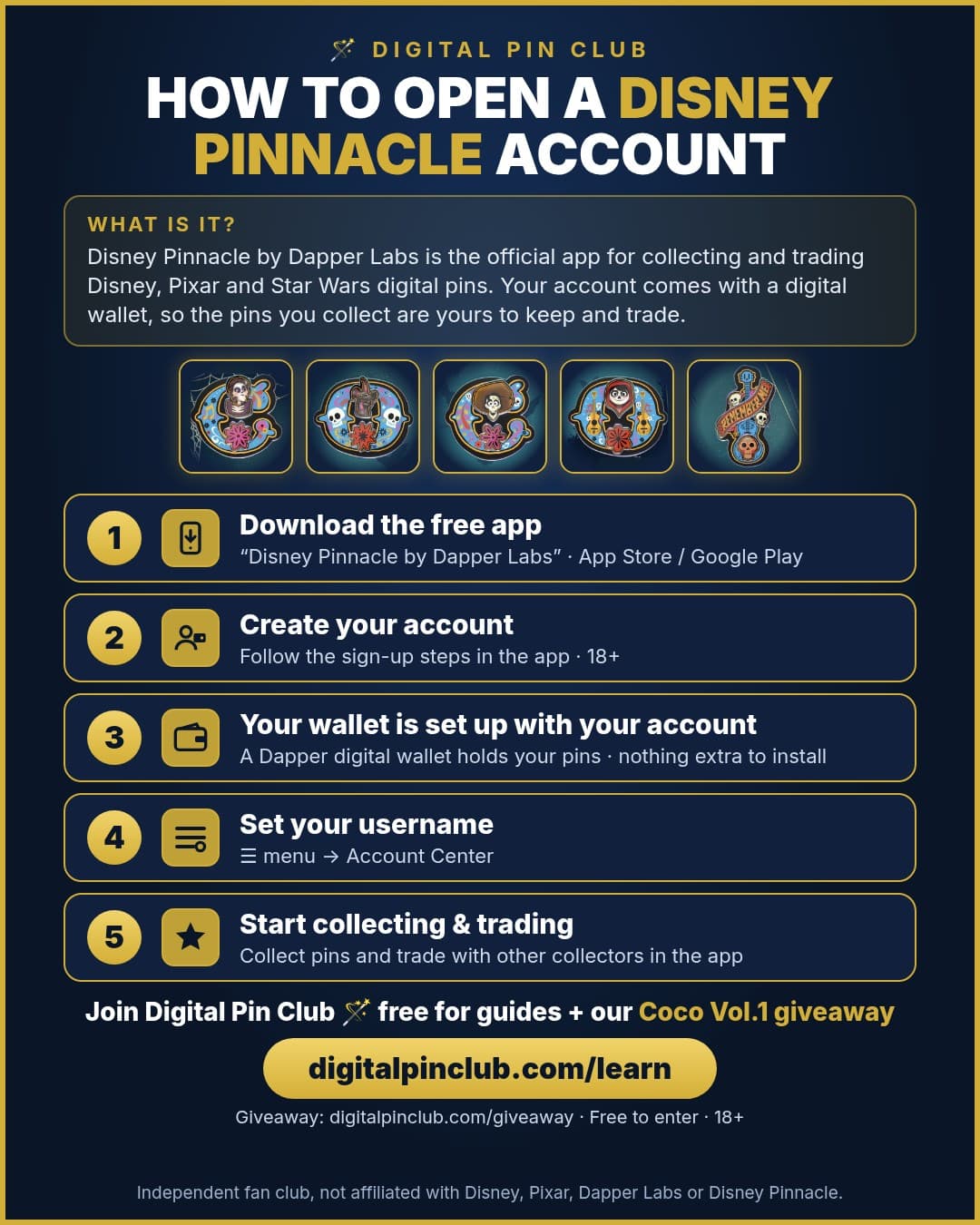
Your account comes with a digital wallet, so the pins you collect are yours to keep and trade. It takes a few minutes, and you need to be 18+ (or the age of majority where you live) under the Disney Pinnacle Terms.
1Get the app, or use the web
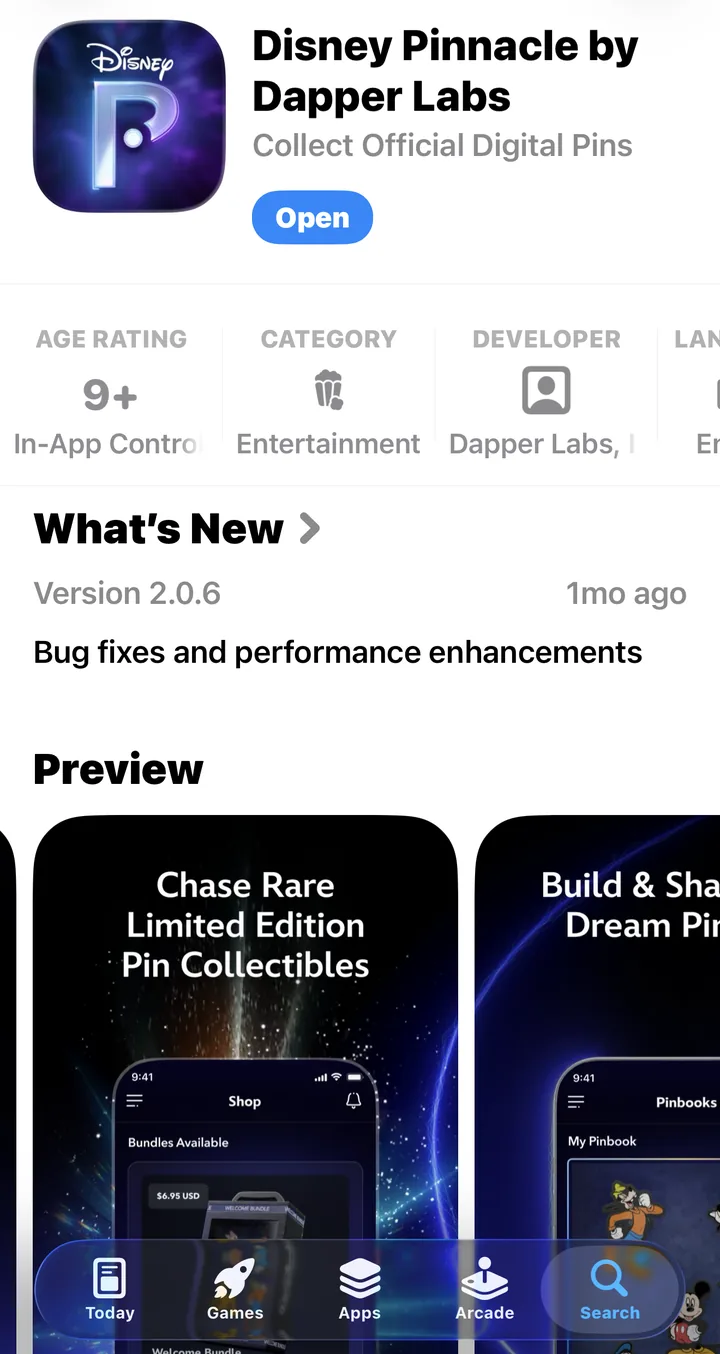
Download Disney Pinnacle by Dapper Labs. It's free, with optional in-app purchases:
Collecting and trading happen in the app. The Marketplace is web-only at disneypinnacle.com, where you sign in with the same account.
2Create your account (or log in)
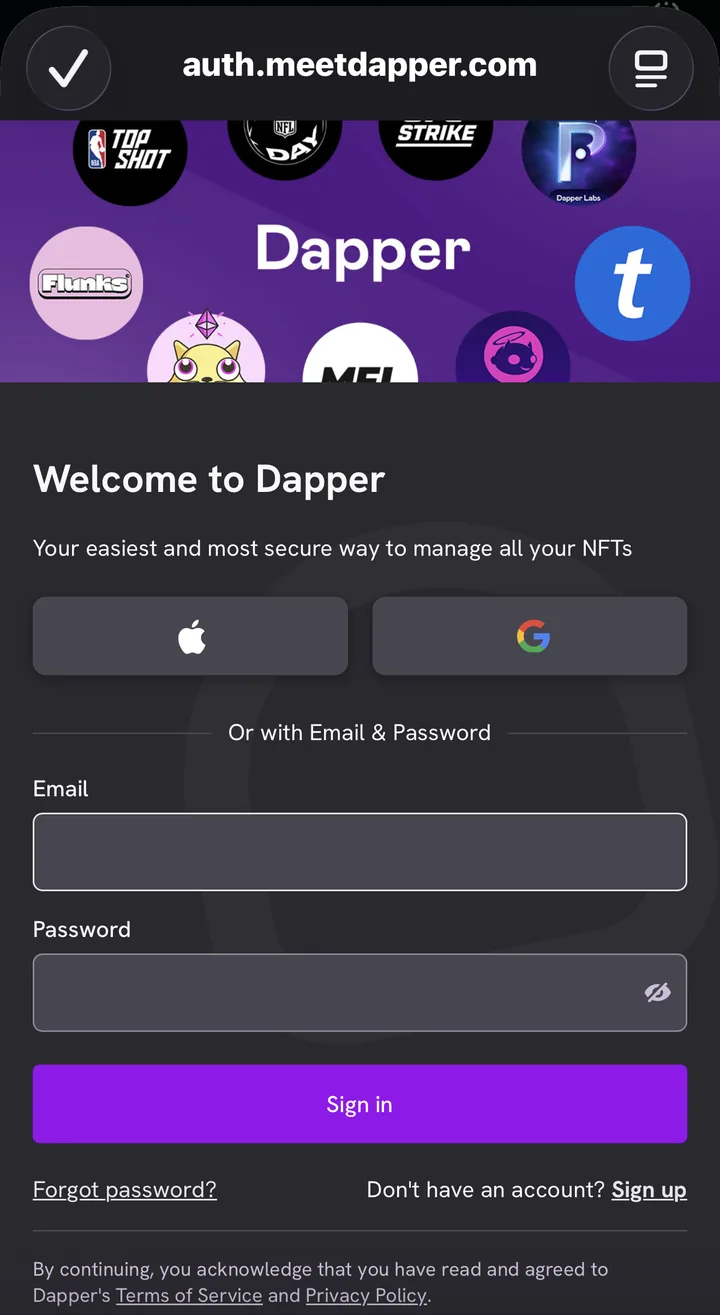
When you sign up or log in, you'll land on the Welcome to Dapper sign-in page (auth.meetdapper.com). Your Disney Pinnacle login is a Dapper account, the same one you use on the web Marketplace. New collectors tap Sign up, or continue with Apple, Google or email. Already have one? Enter your email and password and tap Sign in. Use accurate details, as the Terms ask.
3Your Dapper wallet and Account Center
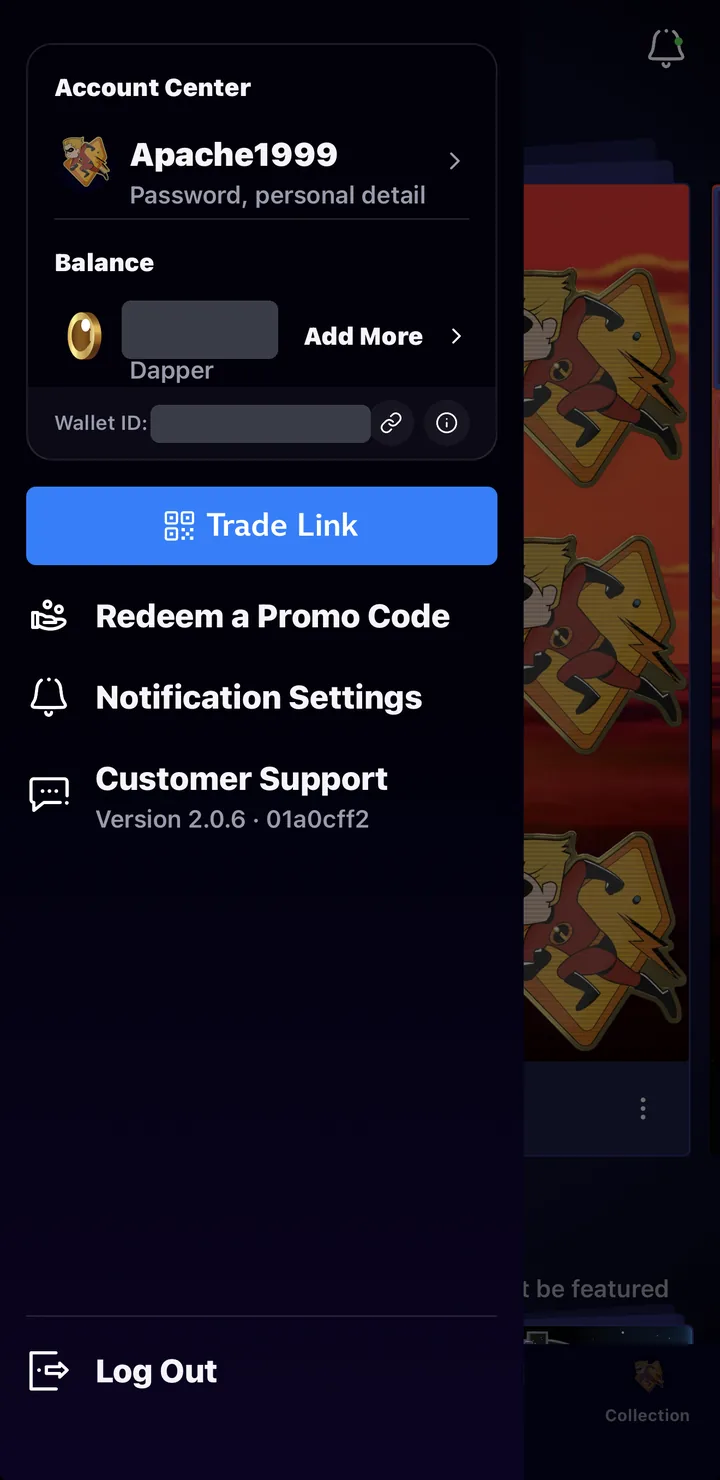
Pins are stored in a Dapper digital wallet tied to your account. They're collectibles on the Flow blockchain, but the app handles that, so there's nothing extra to install.
To see it, tap the ☰ menu at the top left of the app. Your username shows under Account Center, and your Dapper Balance is below it. On the web, click your avatar (top right of disneypinnacle.com) to reach your Dapper Wallet. See Marketplace 101 for balance and fees.
4Find your username (for the club signup)
Your username is the one shown in Account Center, or on your Dapper profile. Tap Account Center to open the profile: the Username field is at the top, with Edit to change it and Save Changes to confirm. Changes can take a while to show. Official guide: Personalizing Your Username.
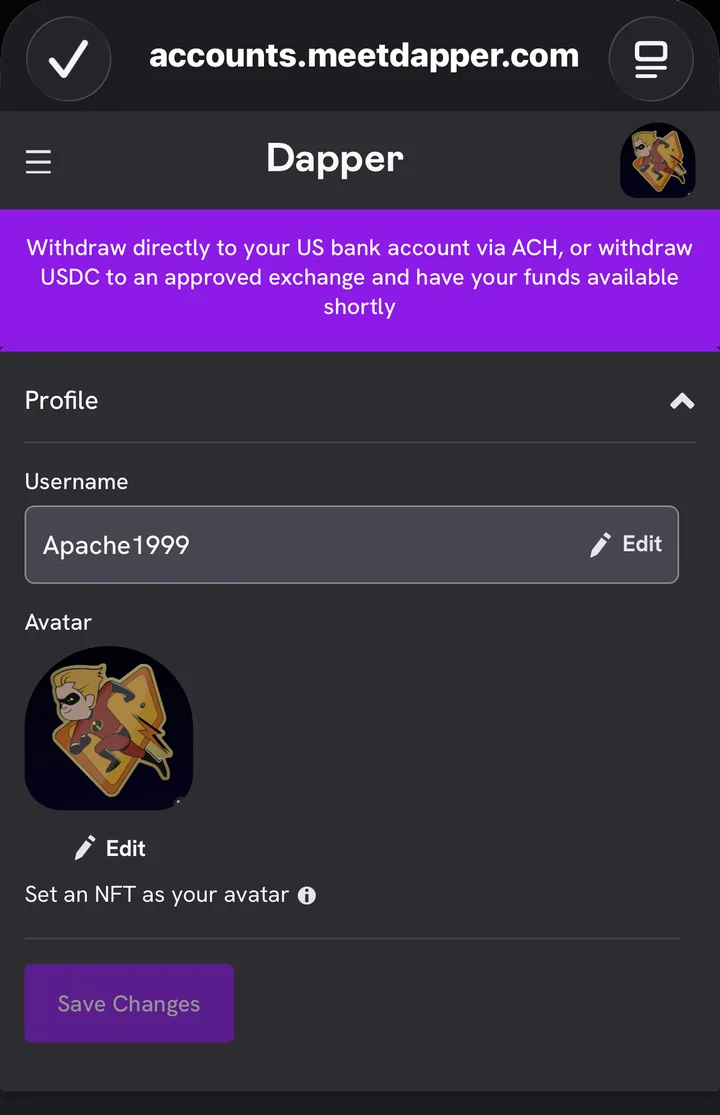
Use exactly that username when you join Digital Pin Club.
5Open your Pinbook
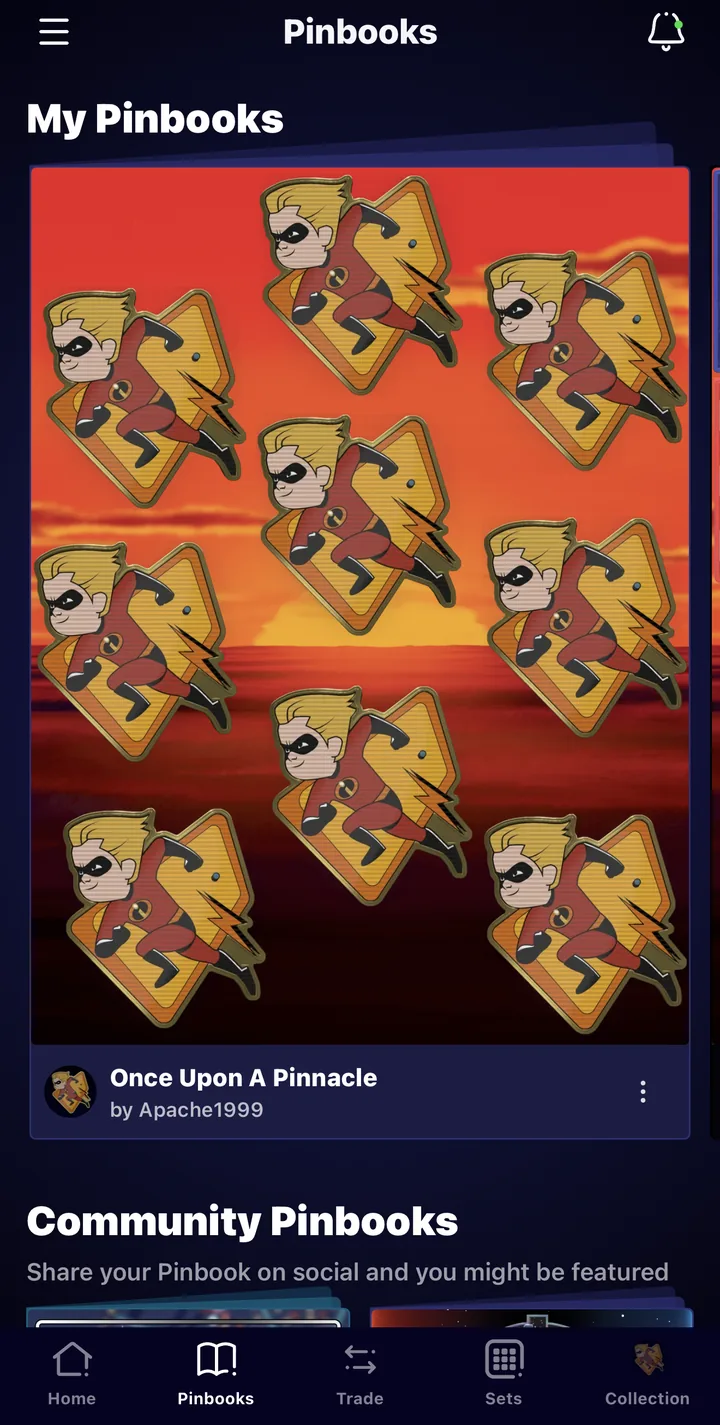
Tap the Pinbooks tab at the bottom of the app to see My Pinbooks. That's where your Pinbooks live. Arrange your pins there and share a Pinbook when you're ready. Below it, Community Pinbooks shows boards from other collectors. More in our Pinbooks guide.
You're set
With your account ready, you can enter the giveaway and join the club. Both are free.
Digital Pin Club is an independent fan club run by Apache1999, not affiliated with Disney, Pixar, Dapper Labs or Disney Pinnacle. Steps checked against disneypinnacle.com and its help center in October 2026; the app can change, so follow what you see in-product.